Platform update: step-by-step guide for room seekers
·
Recently, we have implemented some updates on the Hospi Housing platform. These updates make it easier for you to use our platform and hopefully find a room in the Netherlands. In this blog you will find out what has changed.
Recently, we have implemented some updates on the Hospi Housing platform. These updates make it easier for you to use our platform and hopefully find a room in the Netherlands.
Did you already sign up? Then this blog will be useful for you to learn about the specific changes. If you haven’t signed up yet, start directly here..
Below you will find a step-by-step guide that explains all the changes. If you prefer a summary, here’s what has changed:
1) We have updated the way of searching, allowing you to view a geographical map and list of all the available rooms in the Netherlands.
2) The buttons in the ‘My Hospi’ environment have been updated. Some buttons have the same function, while others have changed or been renamed.
3) We have added a new button called ‘Tips & Tricks’ below ‘My Hospi’ in the menu. Here, you can find useful blogs that help you set up your profile.
4) The chat environment has been updated to provide you with a better overview of your chat requests, active chats and archived chats with hosts.
We hope these updates enhance your experience on the Hospi Housing platform. If you have any further questions, feel free to reach out to us.
Step-by-step guide:
Updated search functionalities
In this elaborated step-by-step guide we will show you how to use the updated search functionalities.
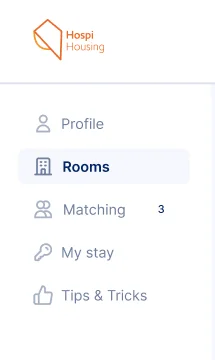
1) Within your ‘My Hospi’ profile you will find the updated side-menu with options such as ‘Profile’, ‘Rooms’, ‘Matching’, ‘My stay’ and a new feature: ‘Tips & Tricks’. When you click on ‘Tips & Tricks’ you will find several articles to help you set-up your profile to find your perfect match.
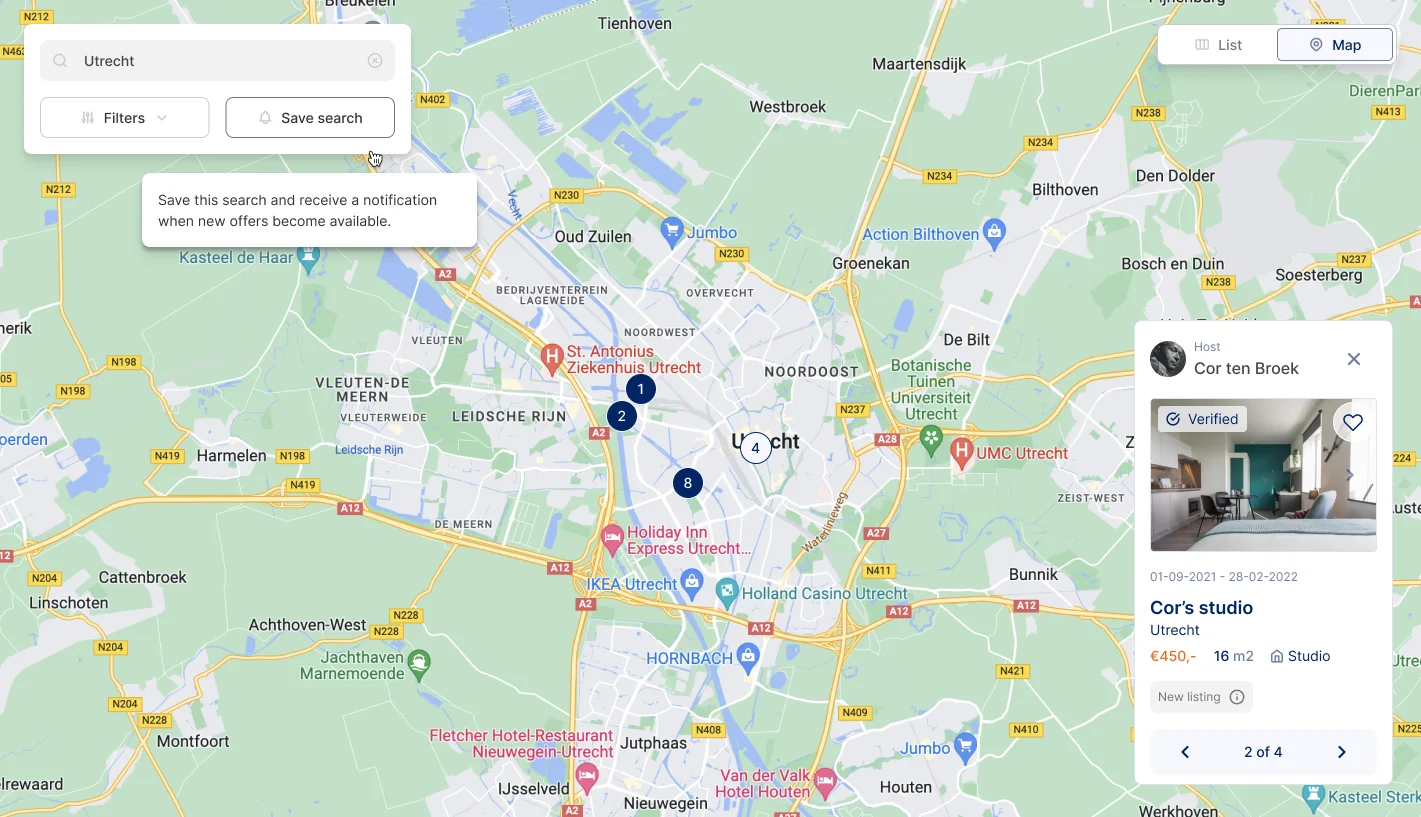
2) Completed your registration and ready to start your search for accommodation? Click ‘Rooms’ and you will find a map with an overview of all the rooms that are currently available in that area. In the top-left corner you find a search bar where you can type the area of your search.
When you click ‘Save search’, you will receive automatic notifications of new rooms published on the platform. Note: you can only save one location. If you want to change the location of your search, make sure to update it with ‘Save search’.
The map shows the chosen destination of your search query. The rooms available within the city show up with dots and numbers of the amount of rooms available in this area.
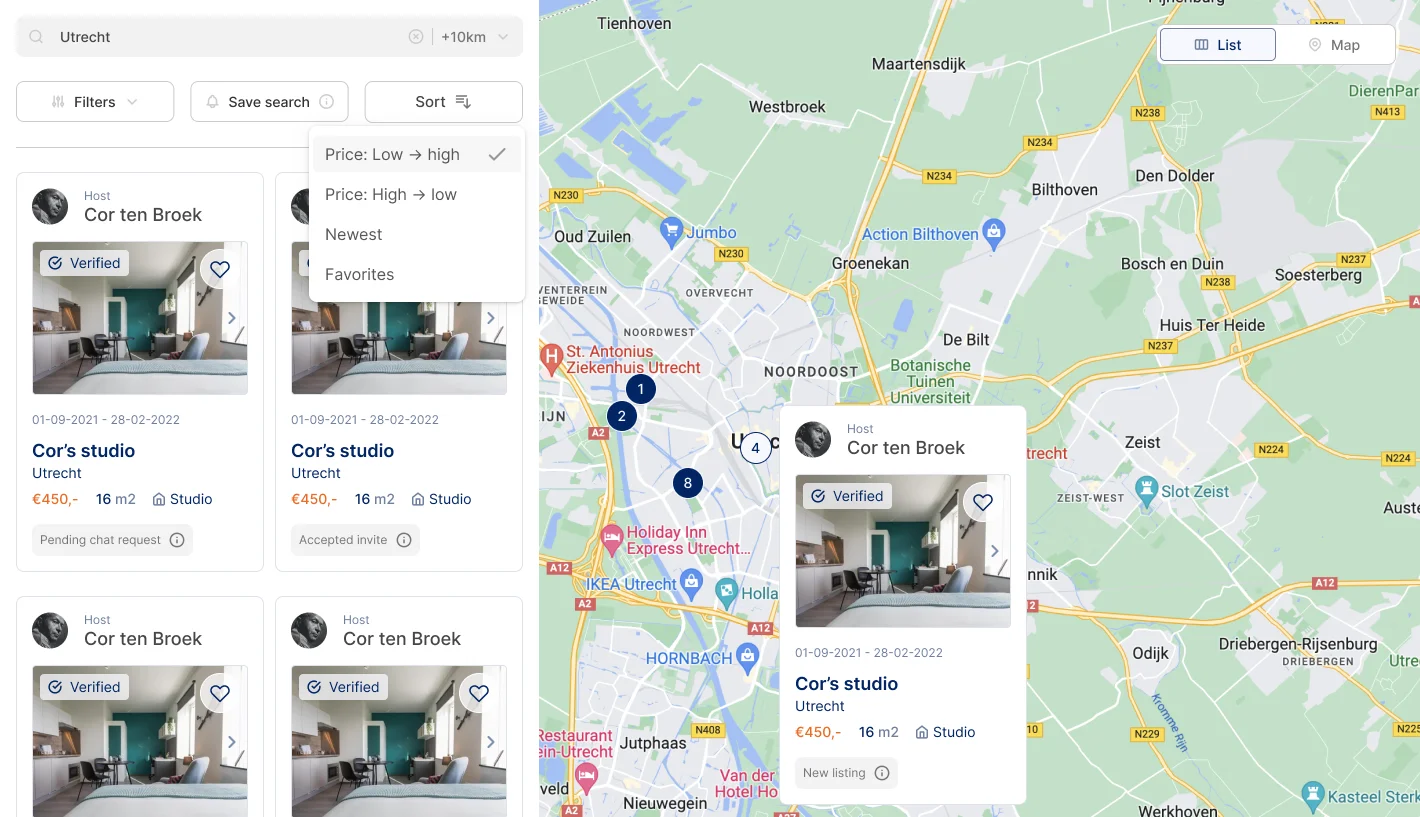
When you click on the dot, in the right corner the selected room pops-up with all the detailed information about the room.
Do you want to add the room to your ‘Favorites’ to review later? Click on the heart and it saves automatically to your ‘Favorites’.
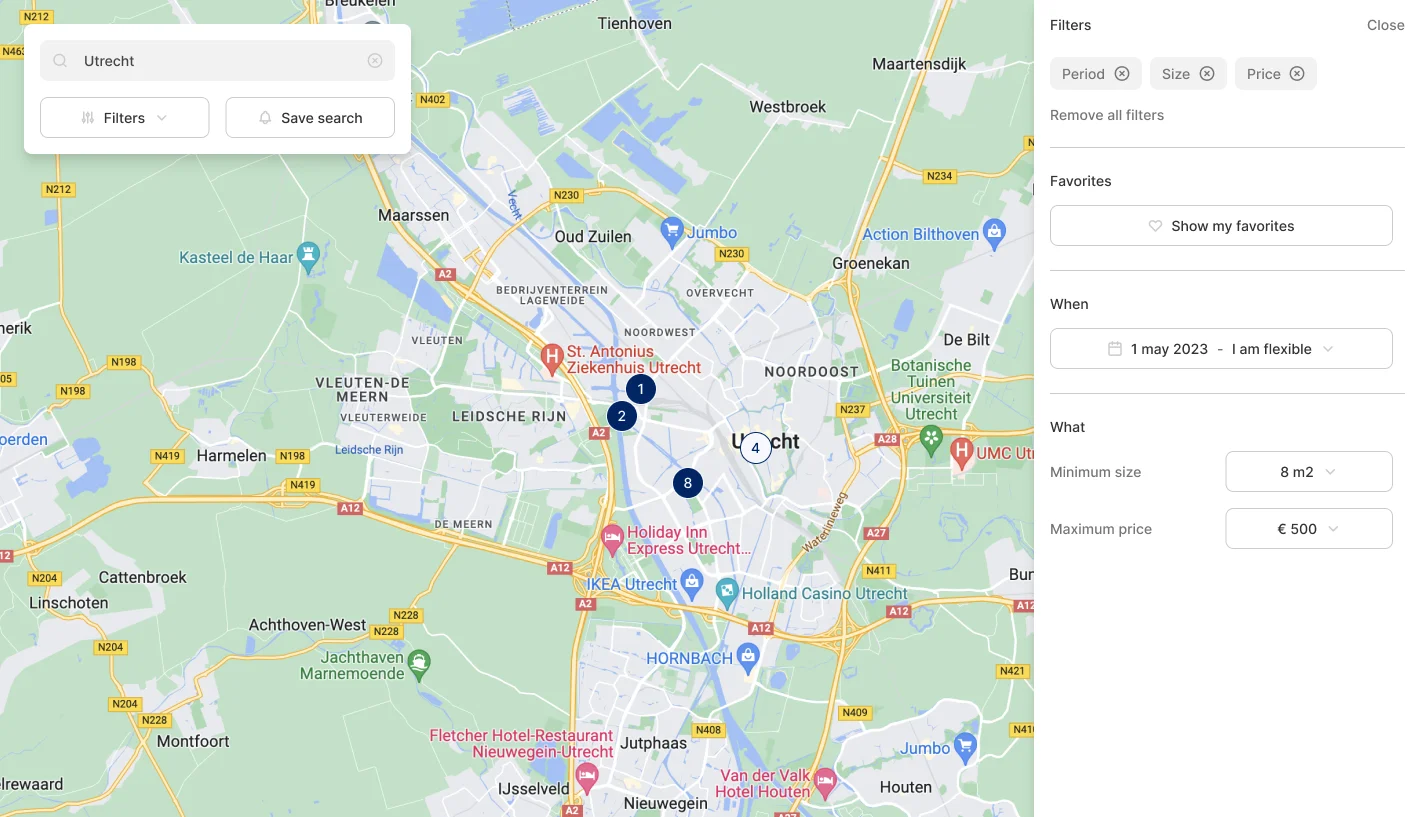
3) To narrow your search, you could use filters by clicking on the ‘Filters’ option in the search bar. You can choose your preferred dates, minimum size and maximum price. Here, you can also find ‘My favorites’.
4) In the right corner of the map, you can choose ‘List’ or ‘Map’ view. If you choose the ‘List’ view, an overview of all rooms within your search area will pop up. Besides the options ‘Filters’ and ‘Save search’, you find the option ‘Sort’ where you can sort the advertisements by price, newest and favorites.
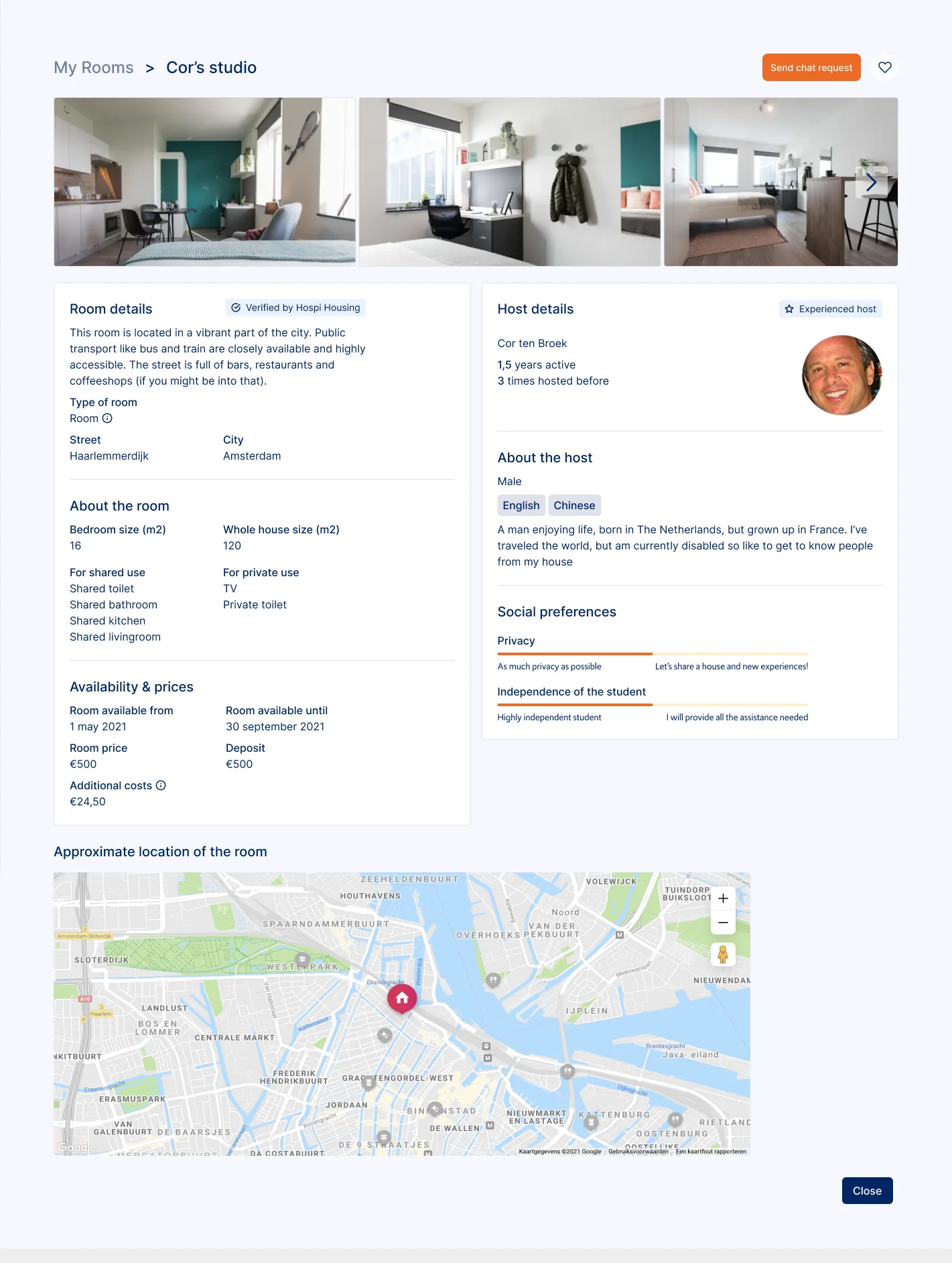
5) When you click on an advertisement, you will find all the detailed information about the room, availability & prices and the details about the host.
6) Interested in the accommodation? Click ‘Send chat request’ to introduce yourself and share why you are interested in this room. If the host accepts your request, you will be able to chat to get to know each other. If there’s a match from both sides, you can confirm the match on the platform and the adventure can start.
Updated chat function
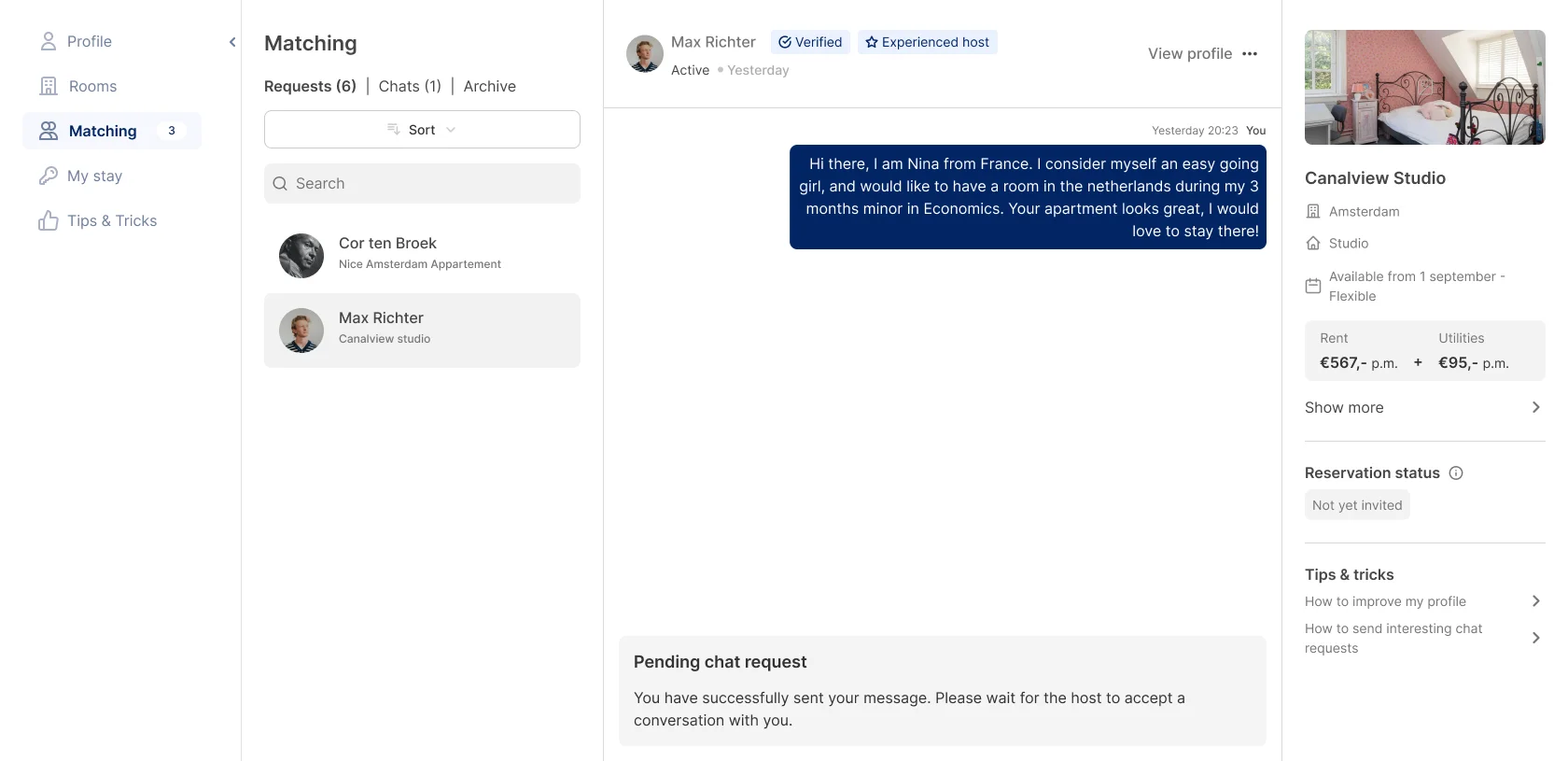
We updated the chat function to provide you with a better overview of your chat requests, active chats and archived chats with hosts.
1) When you select ‘Matching’, you will find an overview of all ‘Chats’. Once you send a chat request, it’s up to the host to accept or decline your chat request. In the meantime your chat request will be visible as pending chat request in the folder ‘Requests’.
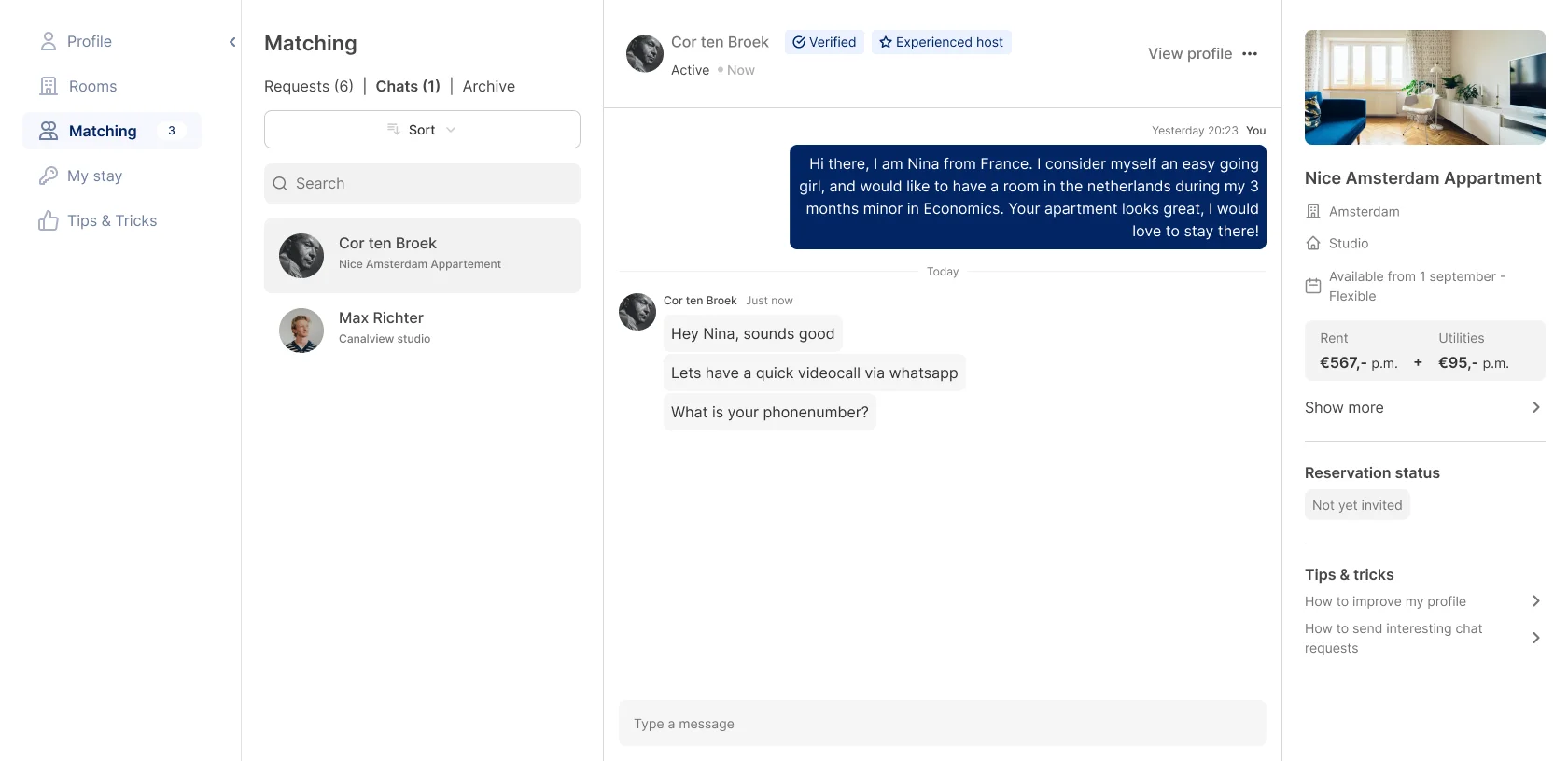
2) Once the host accepts your chat request, you are able to start a conversation with the host. The chat will then automatically move to ‘chats’. When your chat request gets declined the chat will move to ‘archive’.
3) After chatting and (digitally) meeting up with the host, the host can send you an invite to rent the accommodation. You will receive an invitation in the chat, which you can accept or decline.
4) Yay, confirmed! Congratulations, you got yourself a room. The host will draft a contract and send it to you. Hospi Housing will personally reach out to discuss the next steps and help you get well prepared for your arrival!