Website improvements: host manual
Recently, there have been several improvements implemented on the Hospi Housing website. These improvements result in easier navigation through the website. In this blog you will read what changed.
In the summer of 2023, we have implemented several improvements to our website. These improvements result in easier navigation, a better overview of your matches, and smoother use of the chat feature. Additionally, the menu has been changed, and several additional functionalities have been added.
Are you already a host at Hospi Housing? Then this blog is useful for you as it explains what has changed for you. If you are not a host at Hospi Housing yet, you can immediately test our new online environment by signing up here!
What has changed? In summary:
1) 'My Matches' and 'My Chats' have been merged into 'Matches'. This provides a simple overview of all chat requests from candidates, ongoing chats, and archived chats. As a host, this makes it easier for you to filter who you do or do not want to connect with and gives you a better overview of potential tenants.
2) The 'My Hospi' menu has been changed. Most buttons will still have the same functionality but may look different or have a different name. For example, 'My Profile' becomes 'Profile', and 'My Rooms' becomes 'Rooms'.
3) Below 'My Hospi', the 'Tips & Tricks' button has been added. Here, you will find useful blogs on optimizing your profile and increasing your chances of a successful match. If you have any questions, you can also contact us directly.
4) The chat functionality has been significantly improved. You can now see when messages were sent, whether a message has been successfully delivered, and if a message has been read. With the changes in notifications, we expect potential tenants to respond faster.
A step-by-step guide to the improved 'My Hospi' environment:
Below, you can see how the old buttons below 'My Hospi' looked and how the updated environment looks like.
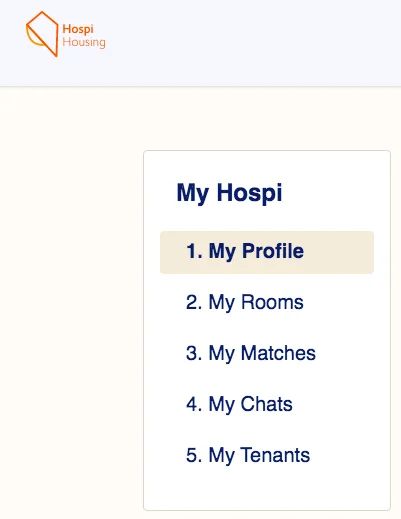
As you can see, the buttons 'Profile', 'Rooms', and 'Tenants' remain the same, but 'My Matches' and 'My Chats' have been merged under the button 'Matches'. Additionally, a new button 'Tips & Tricks' has been added to the menu.
Improved matchmaking process
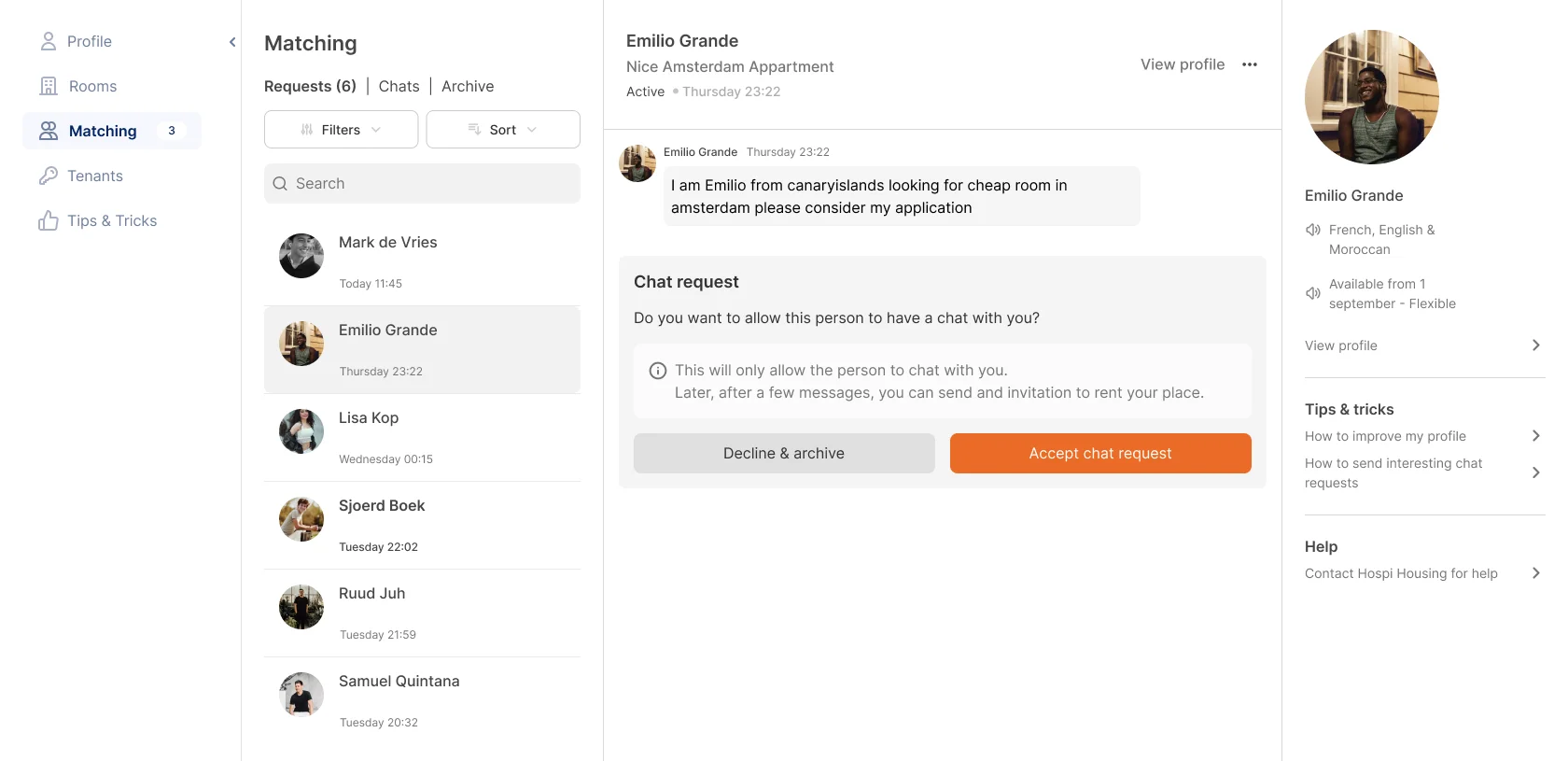
Below, you can see the redesigned overview of your matches. In the new environment, under 'Requests', you can find all candidates interested in the room. New candidates can only send a message request with a short introduction. This prevents hosts from being overwhelmed with messages. Afterwards, you can choose to accept or decline and archive the chat request.
a) Accept Chat Request - If you like the message and profile of the candidate, click on 'Accept Chat Request'. The chat conversation will then move to 'Chats', where you will find all accepted chat requests.
Accepting a chat request does not mean you are immediately inviting a candidate to rent the room. Accepting a chat request means you are open to getting to know a potential tenant.
b) Decline and Archive - Clicking this button will move the chat request to 'Archive'. The candidate will receive a notification that the chat request has been declined.
Inviting a candidate to rent the room
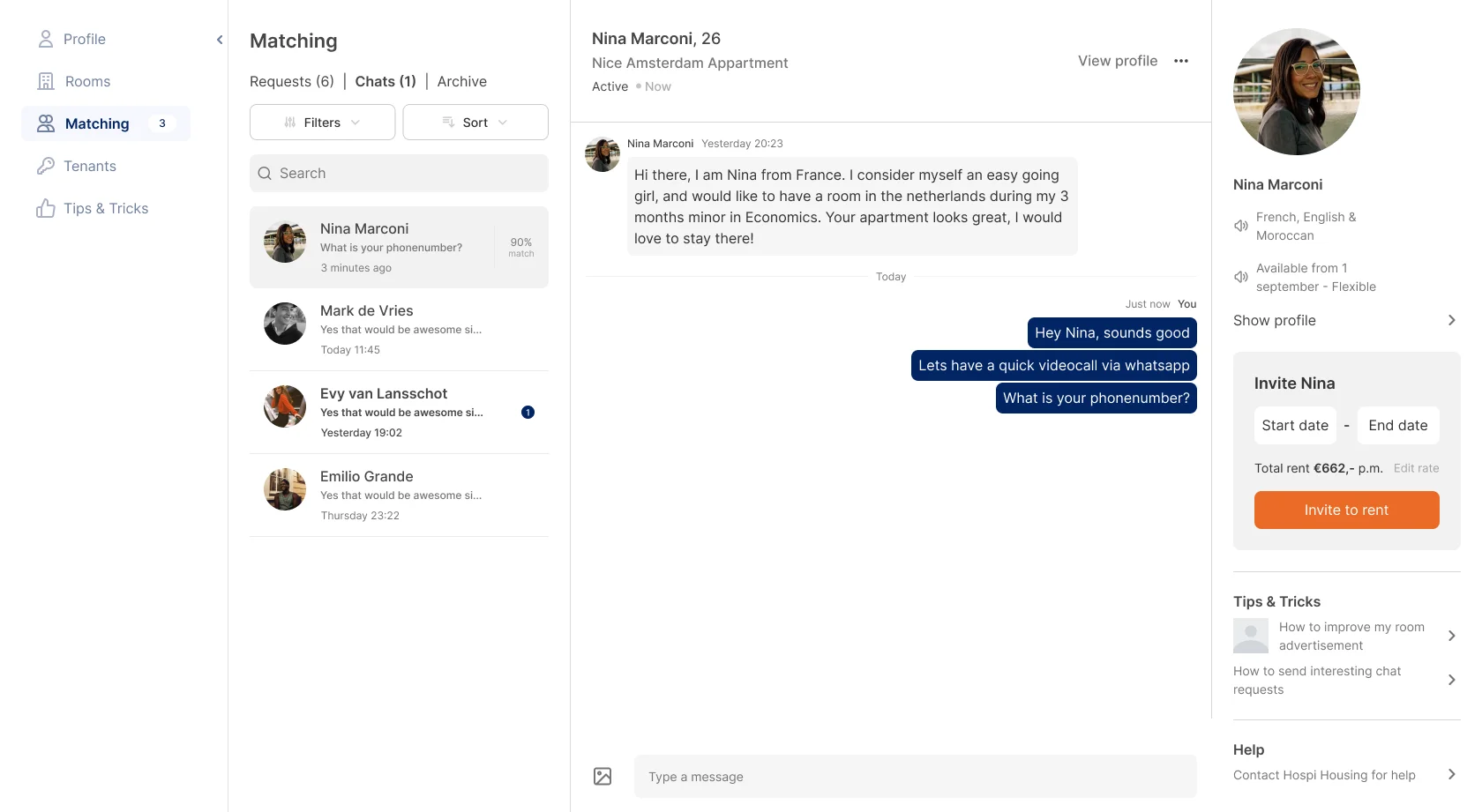
If you have had a pleasant conversation with a candidate and are convinced that you are a perfect match, you can invite the candidate to rent the room. Below 'Matches' and then 'Chats', you have to click on the chat with the candidate.
On the right side, next to the chat window, you will see the candidate's profile, and below that, 'Invite to...'. Before sending the invitation, fill in the start and end dates and ensure the total rent price is correctly filled in. Once everything is filled in correctly, click on 'Invite to rent room'.
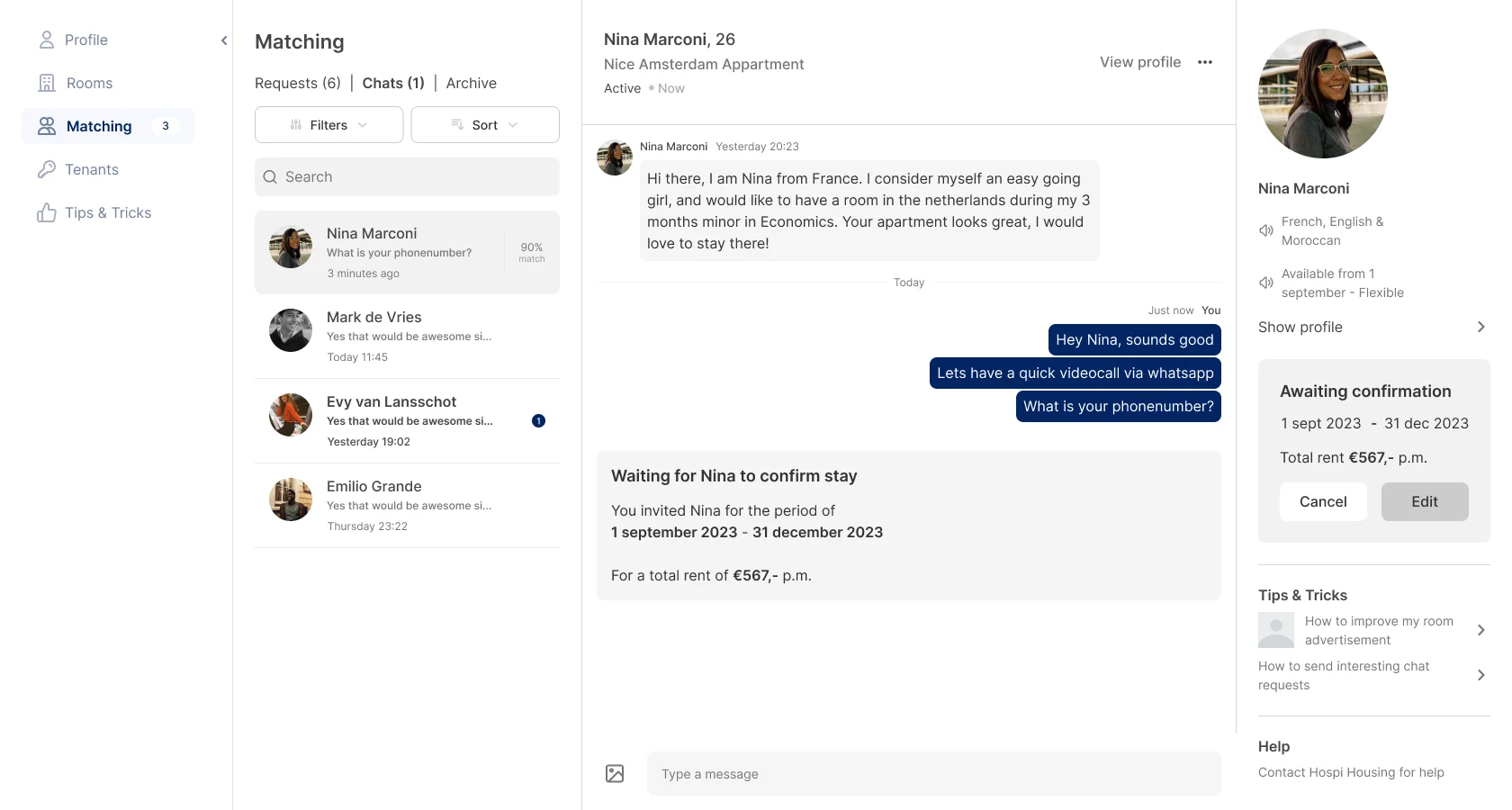
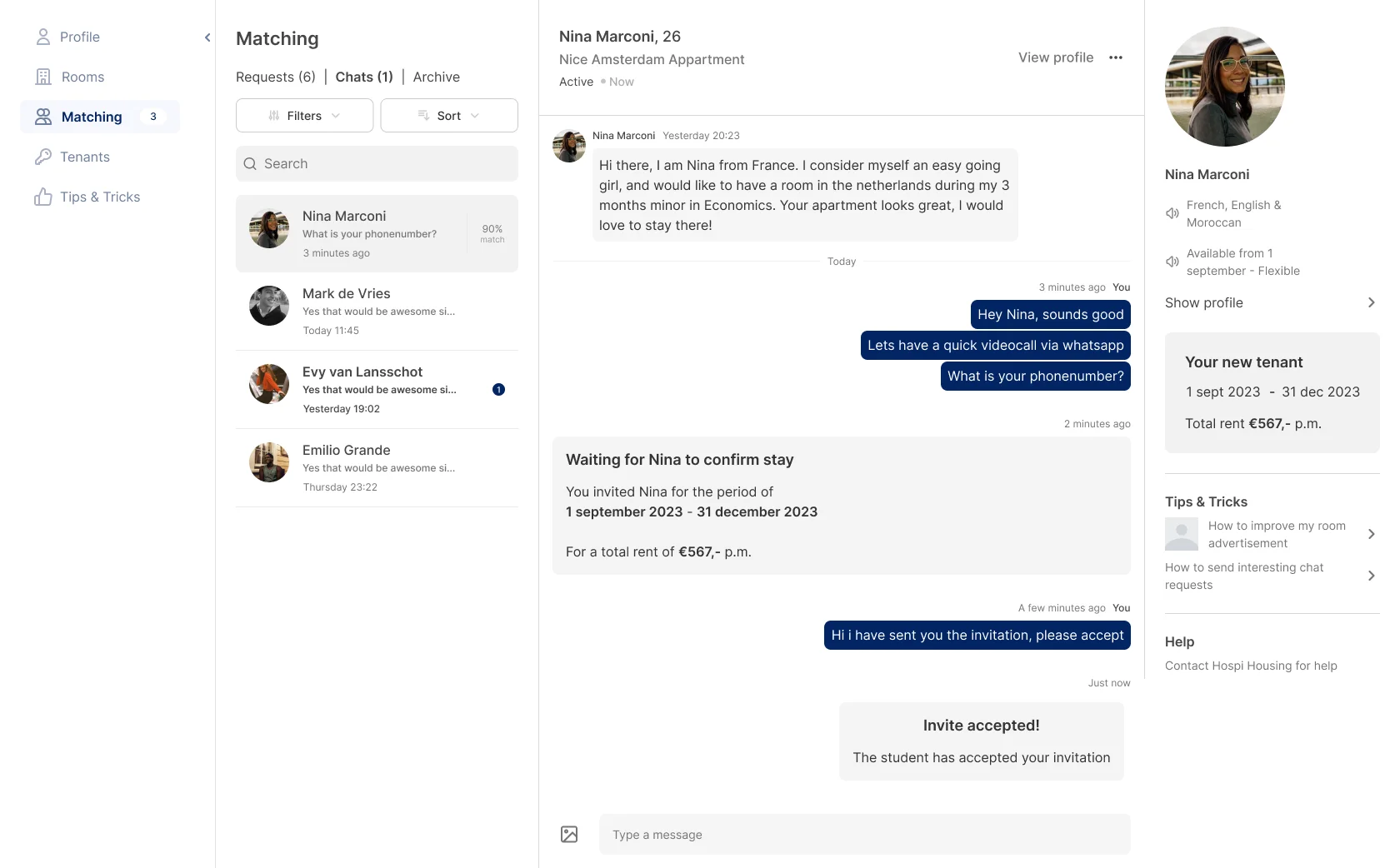
Afterwards, the candidate will receive a request to accept the invitation. On the right side of the chat window, you will see the status of the invitation. As long as it says 'Awaiting Confirmation,' you can manually 'Cancel' or 'Update' the invitation.
If your invitation is accepted, congratulations! It means you have found a new tenant for your room. The message 'Awaiting Confirmation' will then change to 'Your New Tenant' with details of the rental period and total rent price.
Dearchiving chats
Below 'Archive', you will find all the chat requests that you have declined and archived. If you want to reconsider a candidate, you can still decide to reconnect with the candidate. Open the chat window below 'Archive' and click on 'Dearchive' in the top right corner.
Good luck with your search for a new tenant! Still got questions or need personal advice? Contact us and we will help you!